> For the complete documentation index, see [llms.txt](https://maxion-1.gitbook.io/ragnarok-landverse-america/llms.txt). Markdown versions of documentation pages are available by appending `.md` to page URLs; this page is available as [Markdown](https://maxion-1.gitbook.io/ragnarok-landverse-america/game-guide/getting-started/how-to-turn-on-two-factor-authentication-2fa.md).
# How to turn on Two-Factor Authentication (2FA)
Two-Factor Authentication (2FA) is implemented to enhance the security of players’ accounts by adding an additional layer of protection beyond passwords alone.Furthermore, 2FA serves as a foundational security mechanism that enables the integration of advanced features in the future
Follow these steps to turn on Two-Factor Authentication:
1.Go to [Maxion Account](https://account.maxion.gg/).
2.Click on \[Continue with Google], the system will automatically create a new Maxion account for you if your email doesn't have an account**.**
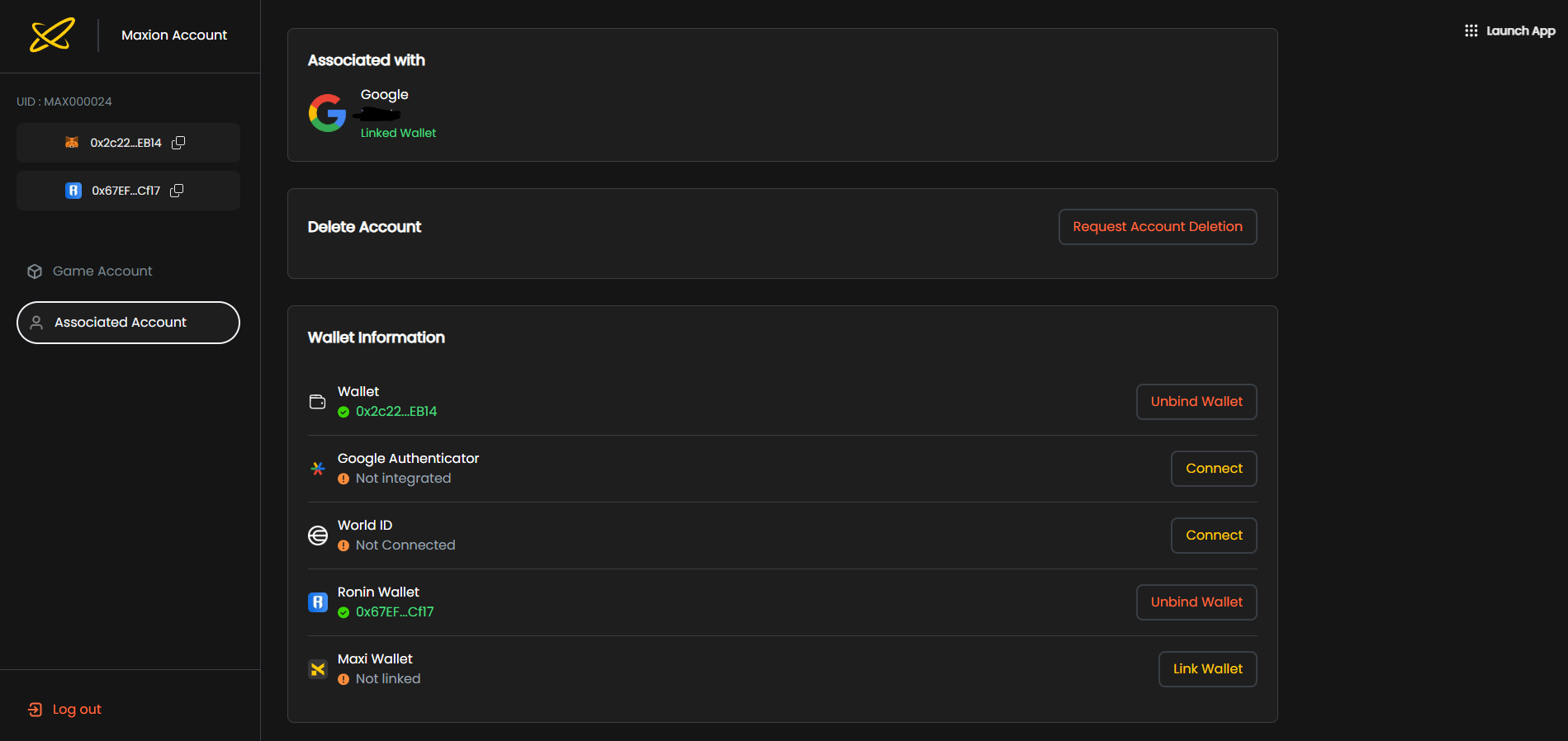
3.In the Associated Account tap,You will find **Google Authenticator**.
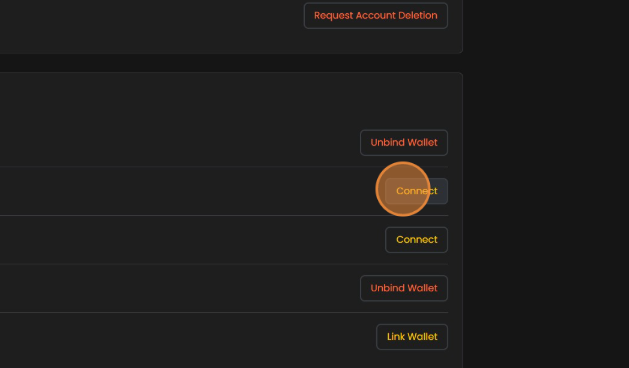
4.Click **“Connect”** to begin enabling **Two-Factor Authentication (2FA)**.
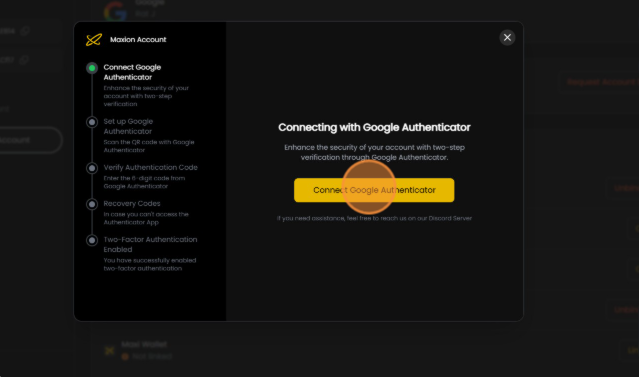
5.The **“Connecting with Google Authenticator”** module will then appear.\
After that, click **“Connect Google Authenticator.”**
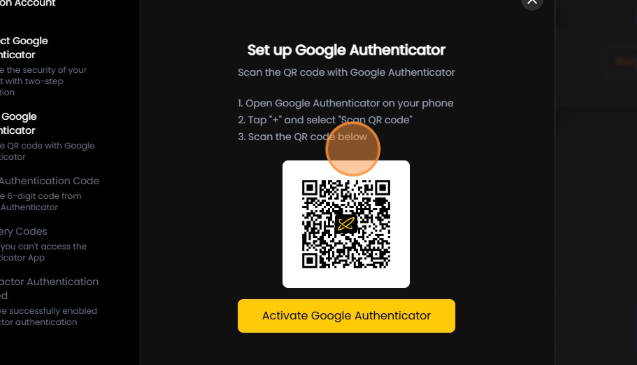
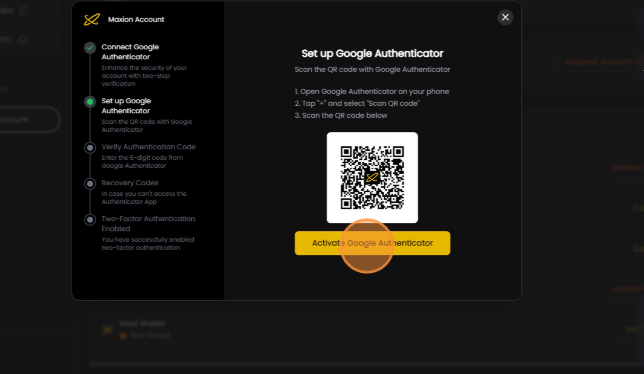
6.Follow the steps displayed on the screen to activate **Google Authenticator**.
7.After completing all the steps, click **“Activate Google Authenticator”** to proceed to the next step.
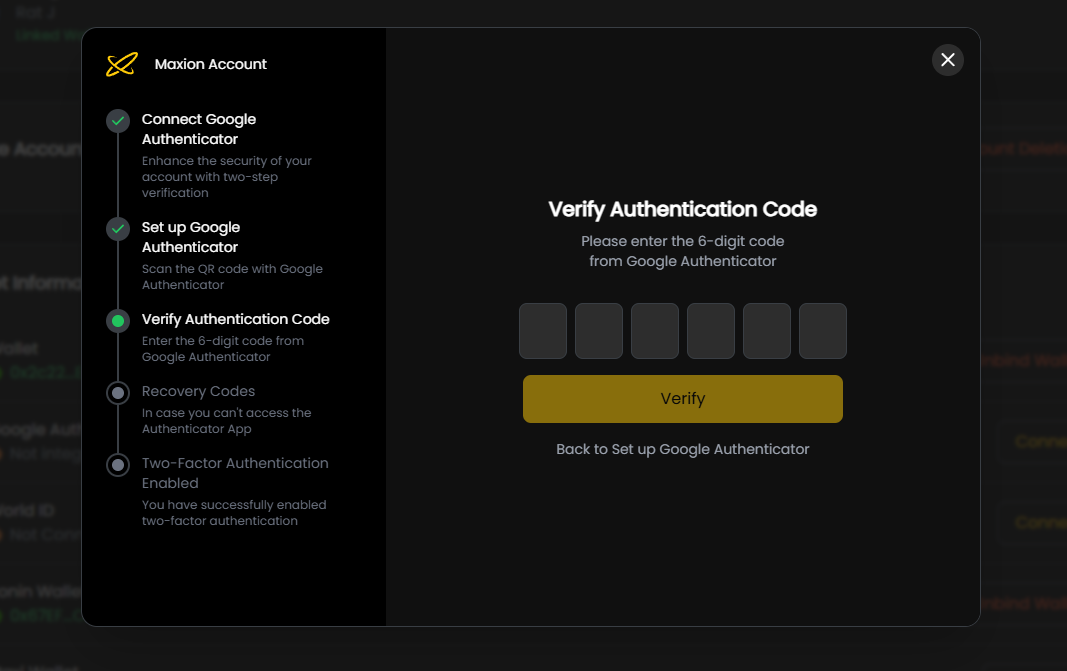
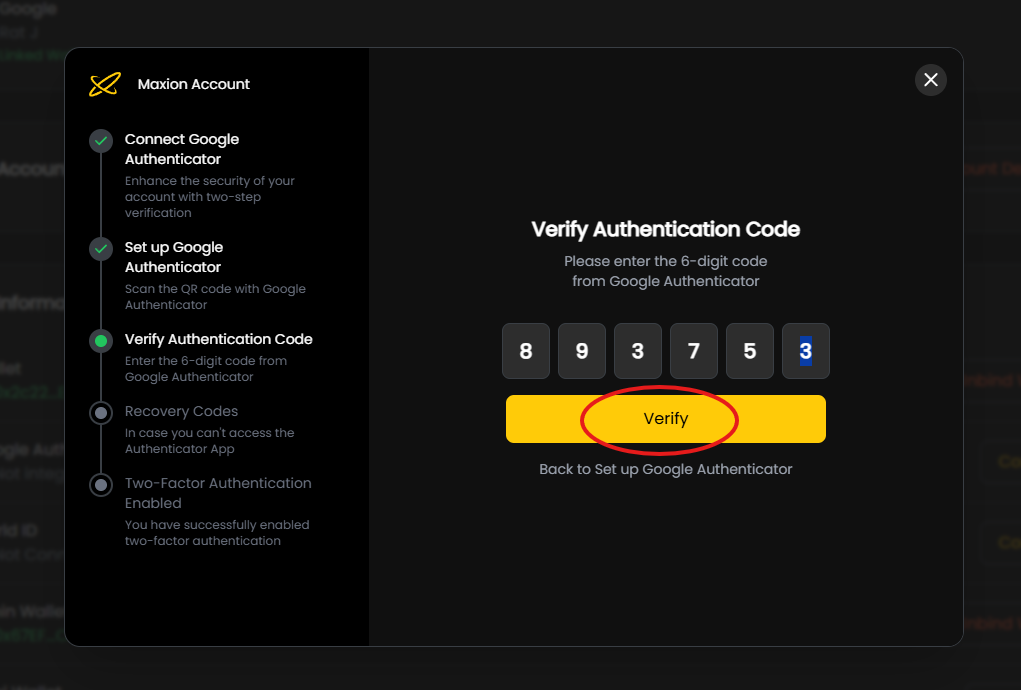
8.Enter the 6-digit code generated by Google Authenticator to verify the authentication code.
9.After entering the 6-digit code, click **“Verify”** to proceed to the next step.
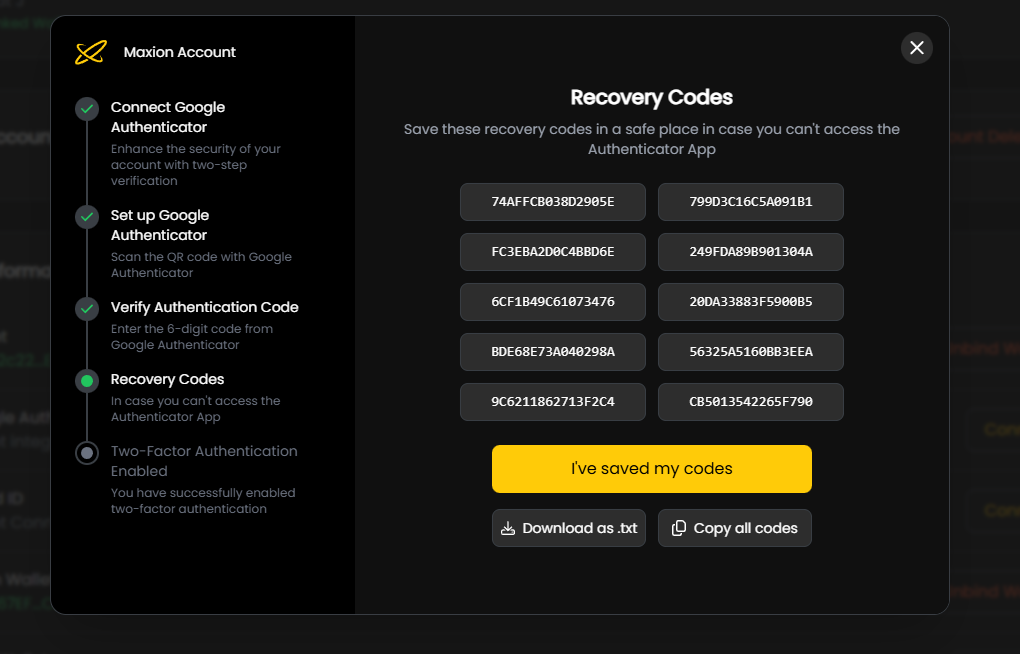
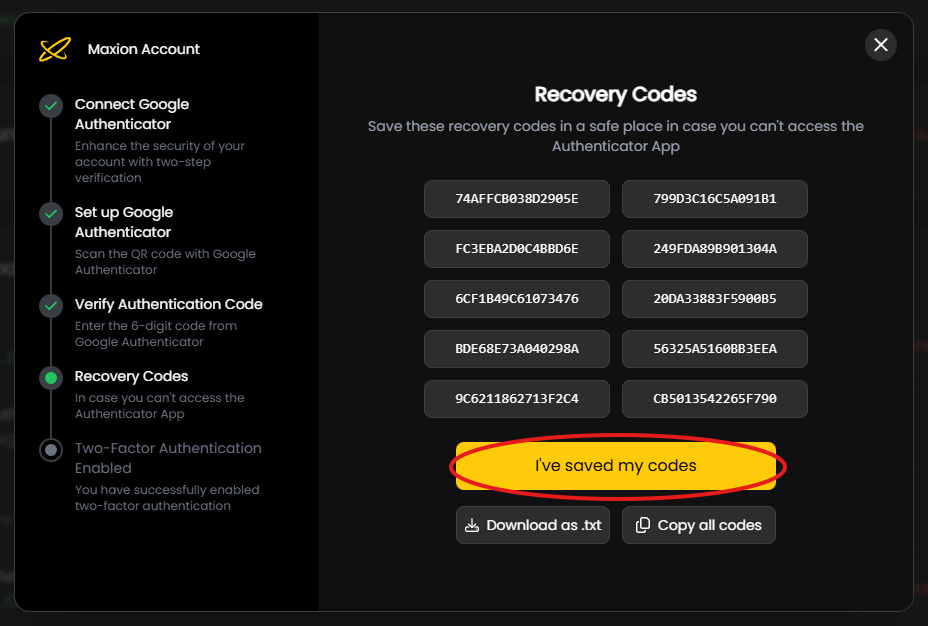
10.You will receive **Recovery Codes**, which can be used to disable **Two-Factor Authentication (2FA)** if needed.
{% hint style="success" %}
It is recommended that you write down or securely save the codes.
{% endhint %}
{% hint style="danger" %}
Do not share this information with anyone.The content shown is for illustrative purposes only.
{% endhint %}
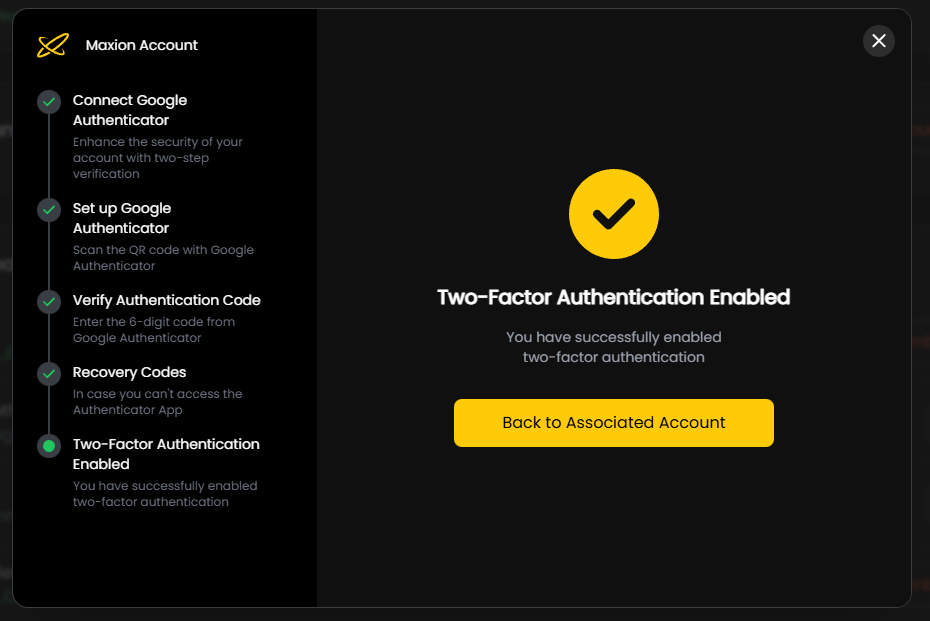
11.After you have securely saved the codes, click **“I’ve saved my codes.”** This completes the activation of **Two-Factor Authentication (2FA)**.
12.This action completes the activation of **Two-Factor Authentication (2FA)** for your account.